3 minutes
Sovol SV08 Active Cooling Mod
Download the STL files on Printables: Sovol SV08 Active Cooling Mod
I think THE biggest missing feature with the Sovol SV08 (once you have the enclosure) is the lack of an intake fan. There's an exhaust fan, but no intake, so you're stuck leaving the enclosure open when printing PLA.
Now, at a high level, what we're going to do is -
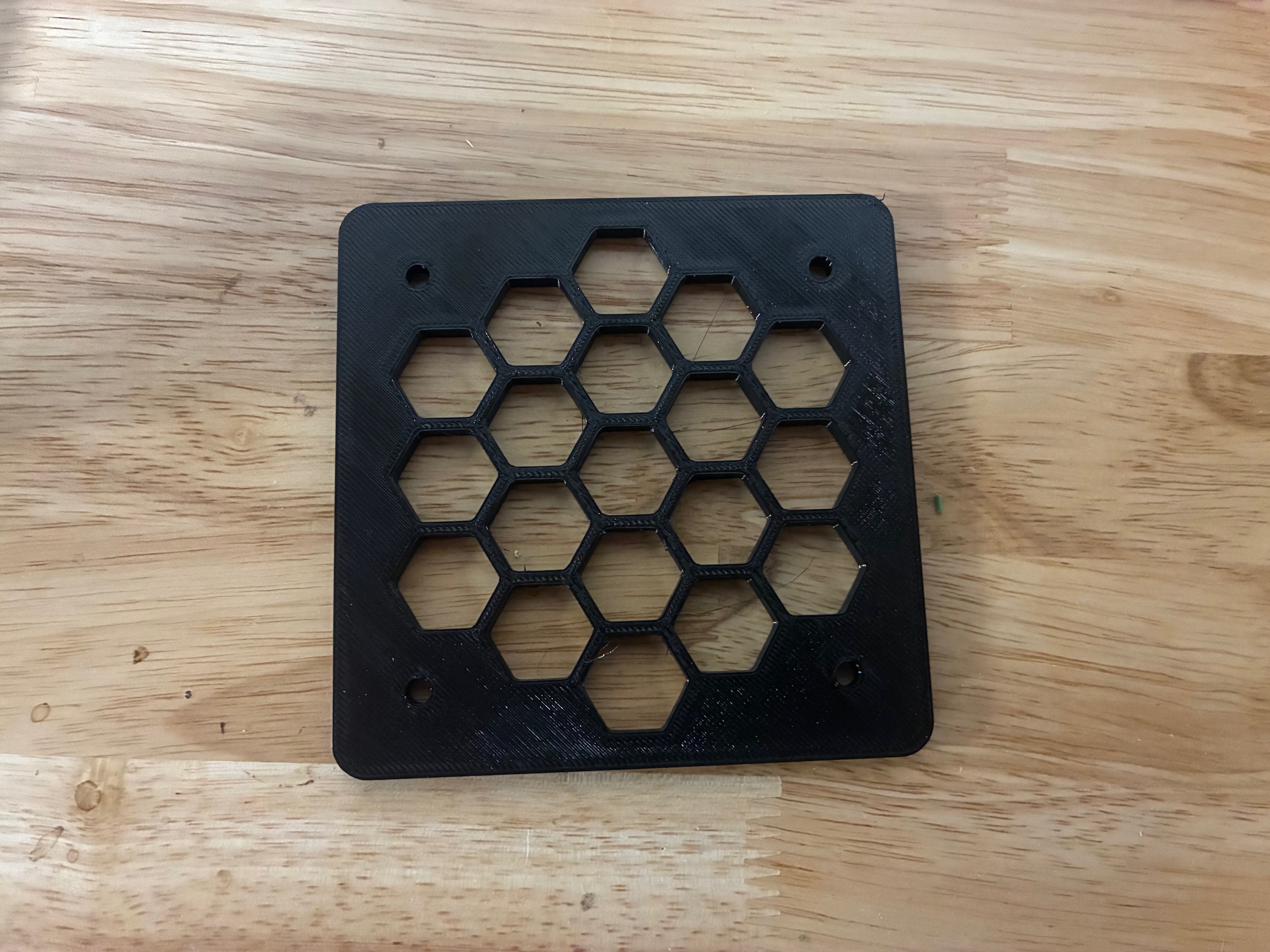
Print a fan cutout template and an interior fan cover. You could skip the fan cover, but it stops things from accidentally hitting the fan.
Use the fan cutout to trace the spot for the new fan.
Cut out a spot for the new fan(preferably far away from the exhaust).
Wire the two fans together
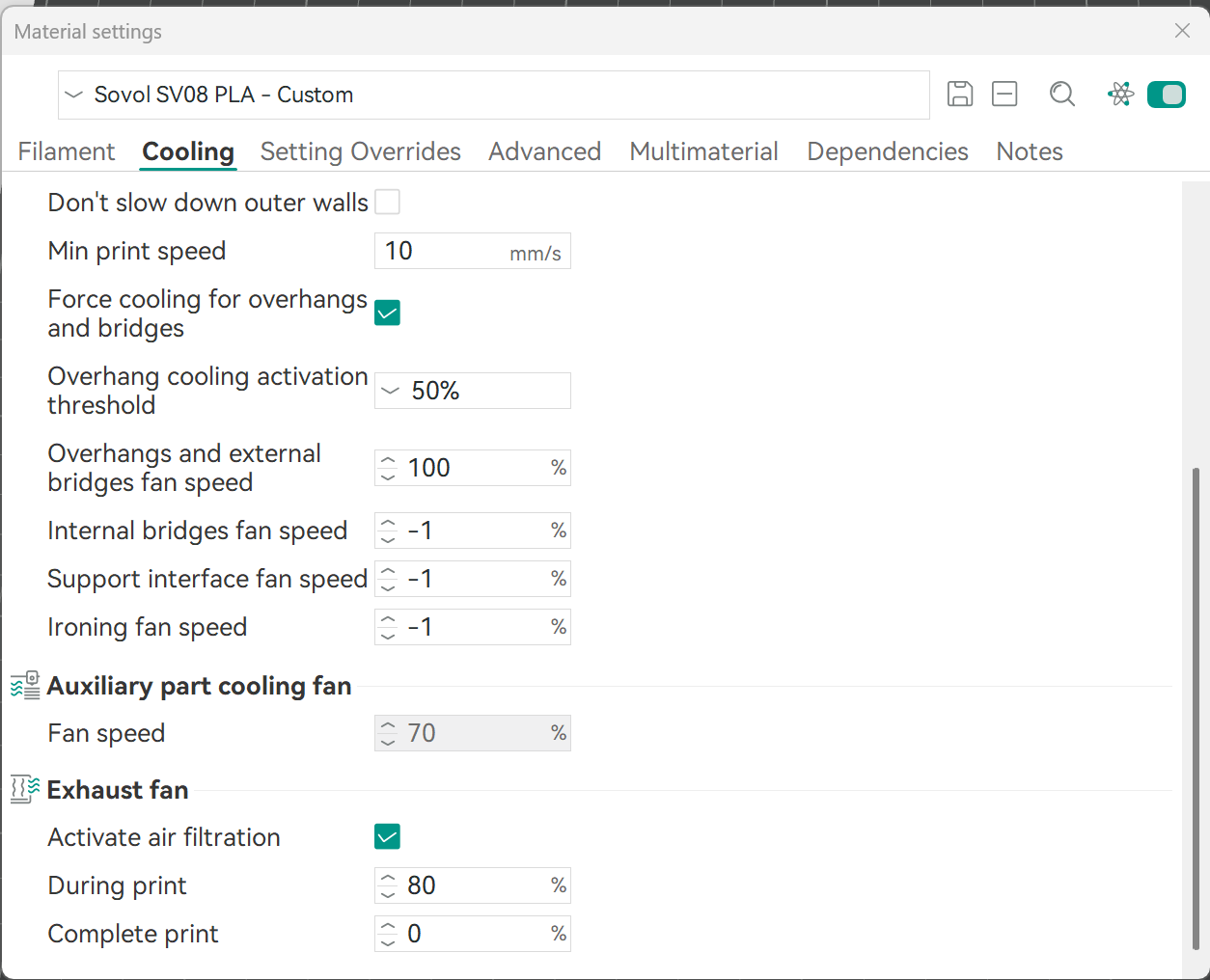
Update Orca Slicer to turn the fans on at 80% during PLA prints
What you need -
An 80mm 24-volt fan with 2 pins and PWM control. I used the 80x15mm version of this one. You could also use the 80x25mm, just buy longer screws https://www.amazon.com/dp/B07RY7HC7W
A metal-friendly 3/16 drill bit. Black oxide works fine.
A way to cut a circular hole. I used a dremel tool and these metal cutting disks - https://www.lowes.com/pd/Dremel-EZ-Lock-5-Piece-Fiber-1-1-2-in-Cutting-Wheel-Accessory/1207875
A splitter, or a way to splice some wires into a splitter. I used my soldering iron and some 2-pin Dupont connectors, but they aren't required.
4x M4-.70x30 machine screws w/m4 nuts.
Step 0
Unplug the printer. We're dealing with electronics. Don't get shocked.
Step 1
Print out the attached STL files. One should be the interior fan cover, the other should be the cutout. I used PCTG because I was experimenting with it, but there's no reason you couldn't use PLA.
Step 2
Use the cutout template and a marker to trace a hole, preferably far away from the exhaust fan.
Step 3
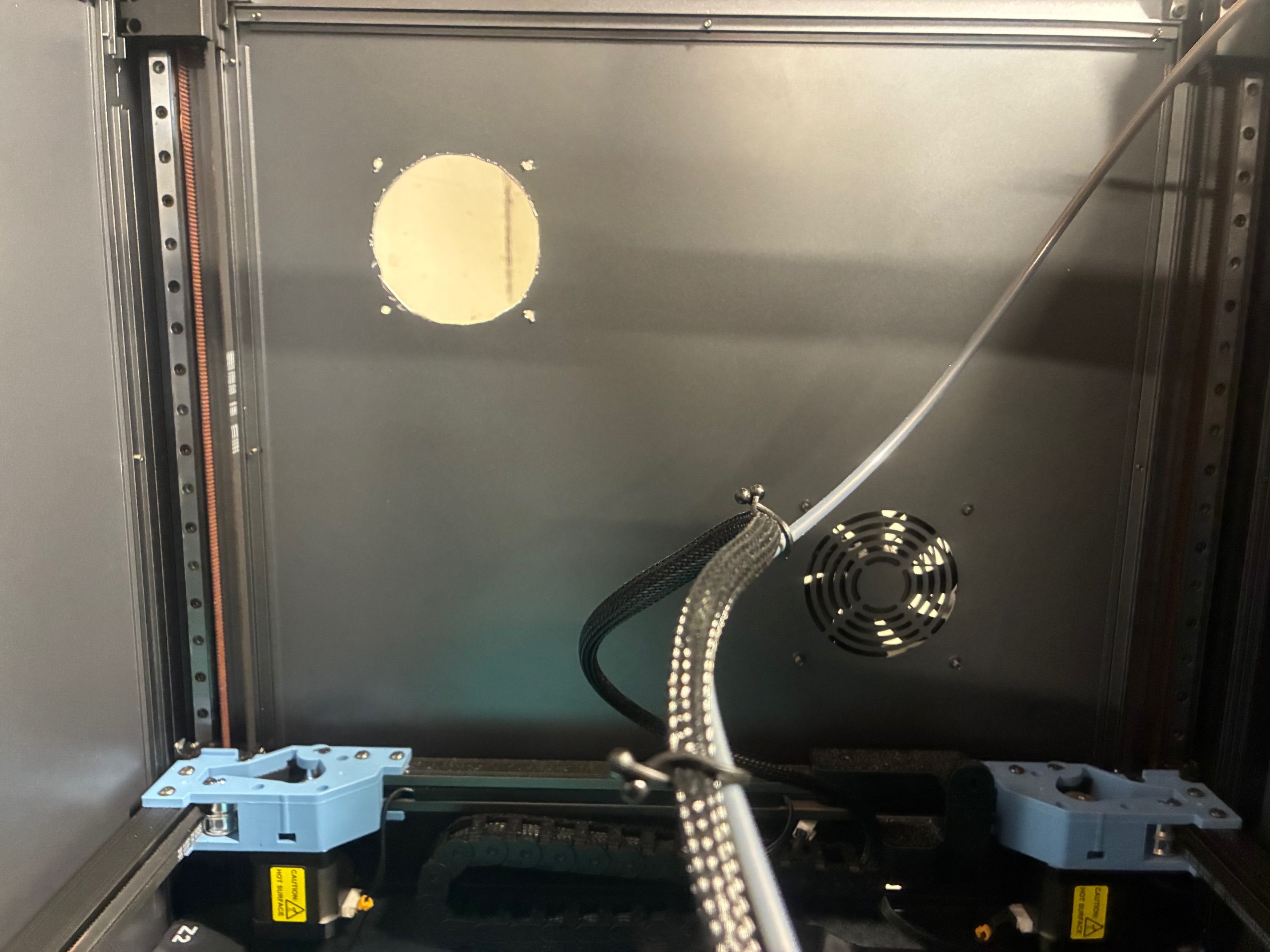
Drill out the bolt holes and use your Dremel tool to cut out the fan hole. Please use proper eye/ear protection. When you're done, I recommend a grinding attachment to make sure there are no sharp edges, and a vacuum to clean out all of the dust & metal bits before you go back to printing. End result should look something like this -
Step 4
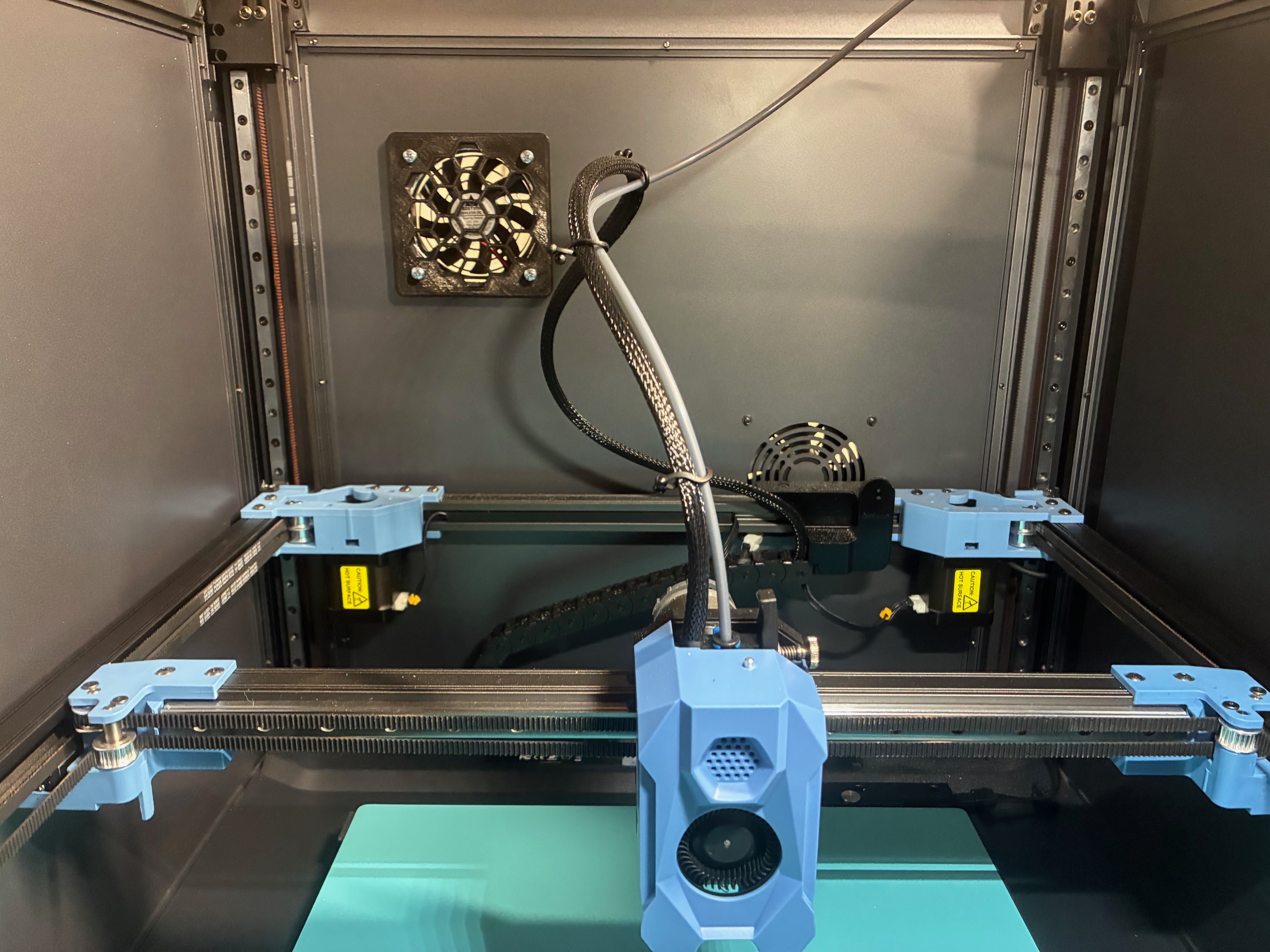
Next step, install the fan by placing the plastic fan cover on the inside of the printer with the fan on the outside facing in. Put the metal cover on the outside of the fan. Results should look something like this -
Step 5
Now the wiring! There's something that looks like an extra fan header on the SV08s mainboard, but it's not actually available from Klipper(at least, not that I can find). It's labeled LED1, and seems to be tied to the LED system. The next-best option is to drive both the intake and the exhaust fans together. For that, we need to split the wire.
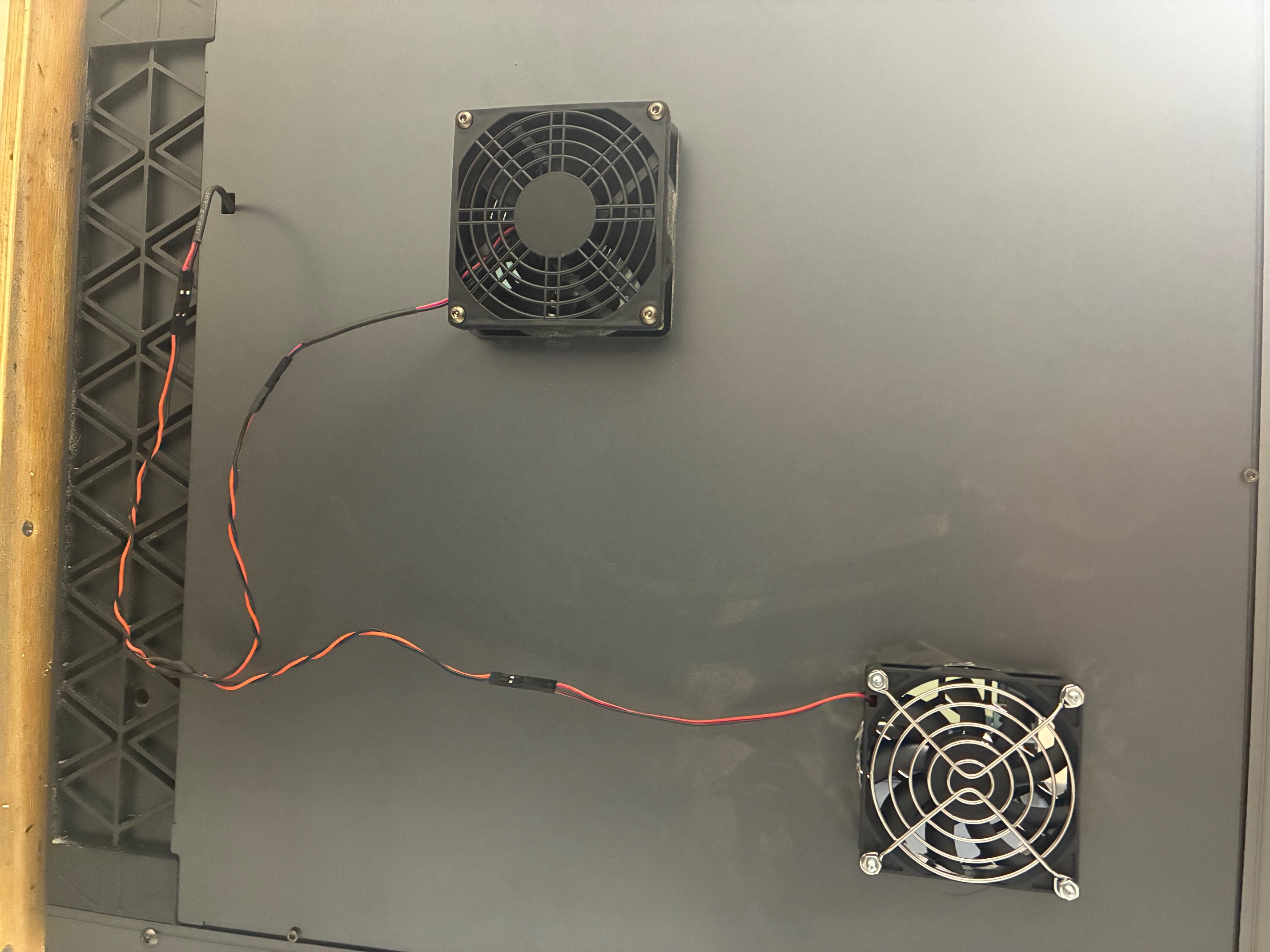
In my case, I chose to make a splitter with my soldering iron & Dupont connectors so I could easily move things around later. You could also just wire things up directly in the back. The end goal is simple though, split the wire pair going to the exhaust fan into two separate pairs of wires going to the two fans. Make sure not to accidentally cross over the red & black wires as you're moving things around.
My splitter -
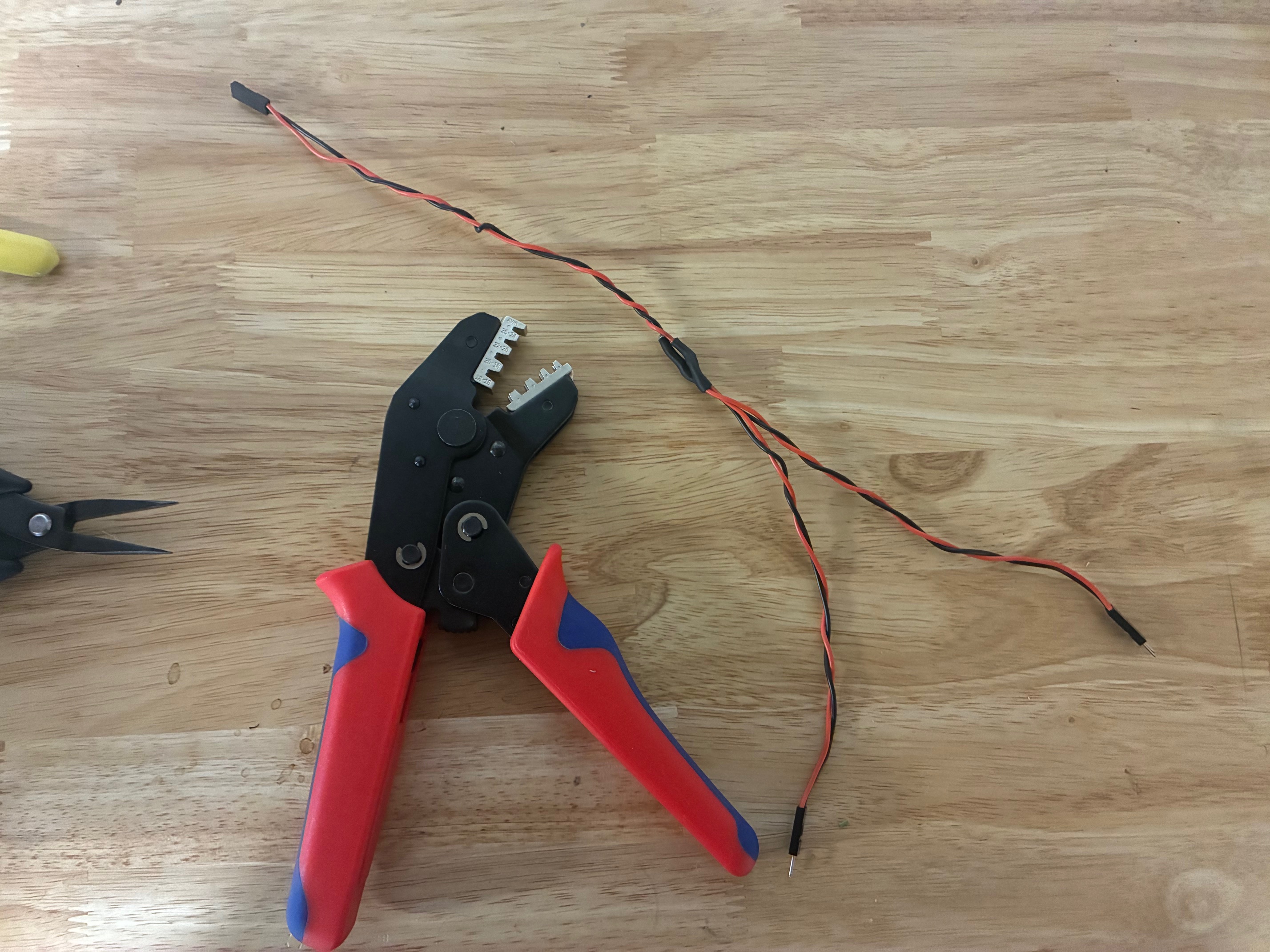
All wired up -
Step 6
Finally, to Orca! Inside Orca, click the three little dots next to your filament, and click Edit. Inside there, you should find a Cooling tab. At the very bottom of the cooling tab, you should see an Exhaust section. Configure this as appropriate for your material and climate. Be sure to leave "Complete print" at 0, or it'll just keep spinning forever.
And that's it! Hopefully this is useful for someone else.